Organizations & Workspaces
How to create your account and set up your business in Acctally.
The structure (quick overview)
Acctally organizes things in three levels:
You (your account)
Your login credentials. One person, one account. You can belong to multiple organizations.
Organization
Your company or group. This is where team members are invited and billing happens. One organization can have multiple workspaces.
Workspace
A set of books. Each workspace has its own transactions, accounts, categories, and reports. Think of it as one legal entity or one business unit.
Example: Sarah runs a consulting firm (organization). She has two workspaces: one for her main consulting business and one for a side project she's testing. Both share the same team and billing, but have completely separate finances.
Step 1: Create your account
Registration takes about 2 minutes. Acctally walks you through it conversationally.
Your details
Name, email, and password.
Company basics
Company name, industry, and team size.
Location
Country and city. This helps Acctally apply the right tax rules and currency defaults.
Accounting settings
Base currency, fiscal year end, and accounting method (accrual or cash).
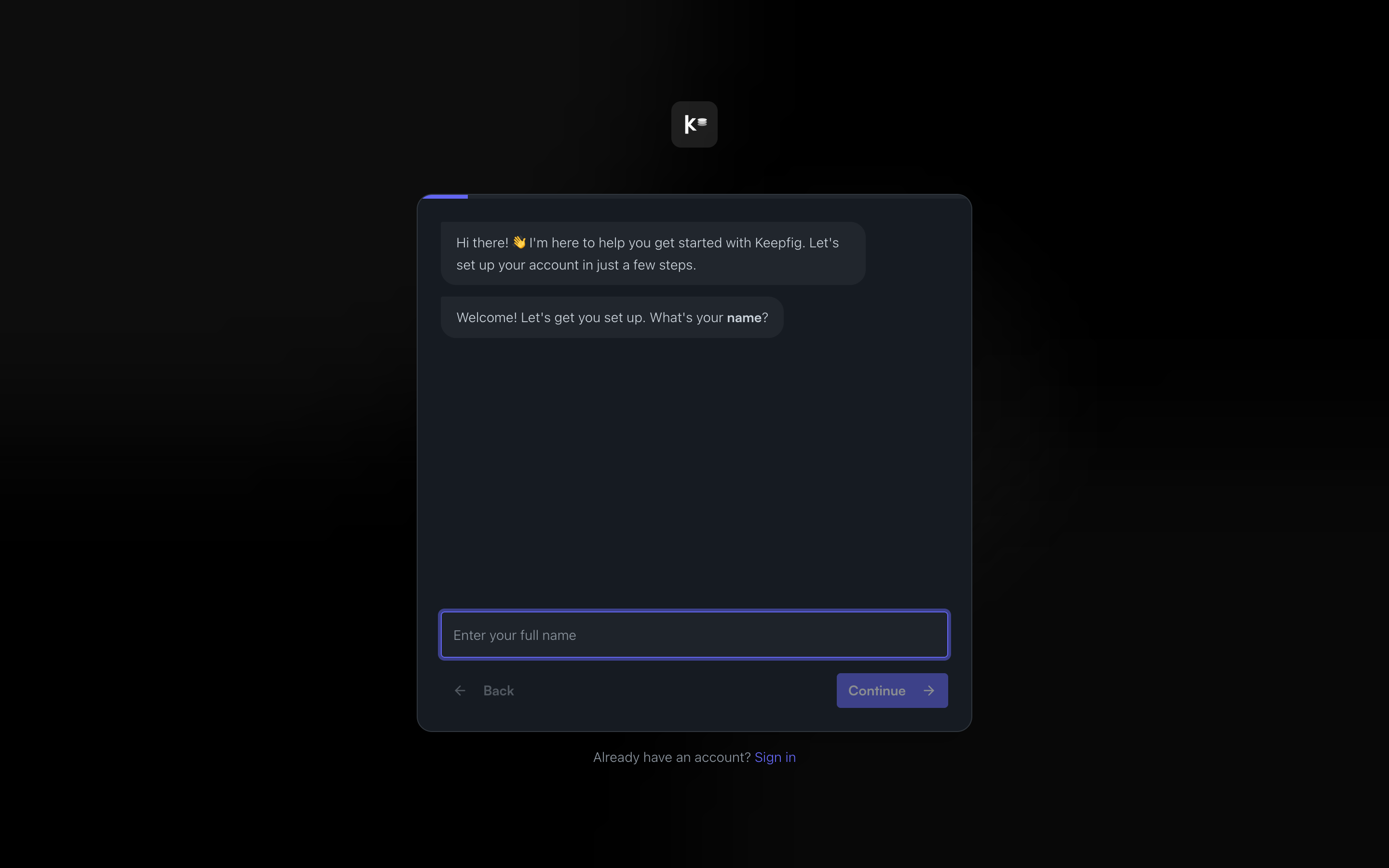
When you complete registration, Acctally automatically creates your first organization and your first workspace. You're ready to start immediately.
Step 2: Your first workspace is ready
After registration, you land on your dashboard. Your workspace is already configured with:
- Default categories for income and expenses, based on your industry
- Tax settings pre-configured for your country
- Base currency set to what you selected
- Fiscal year configured correctly
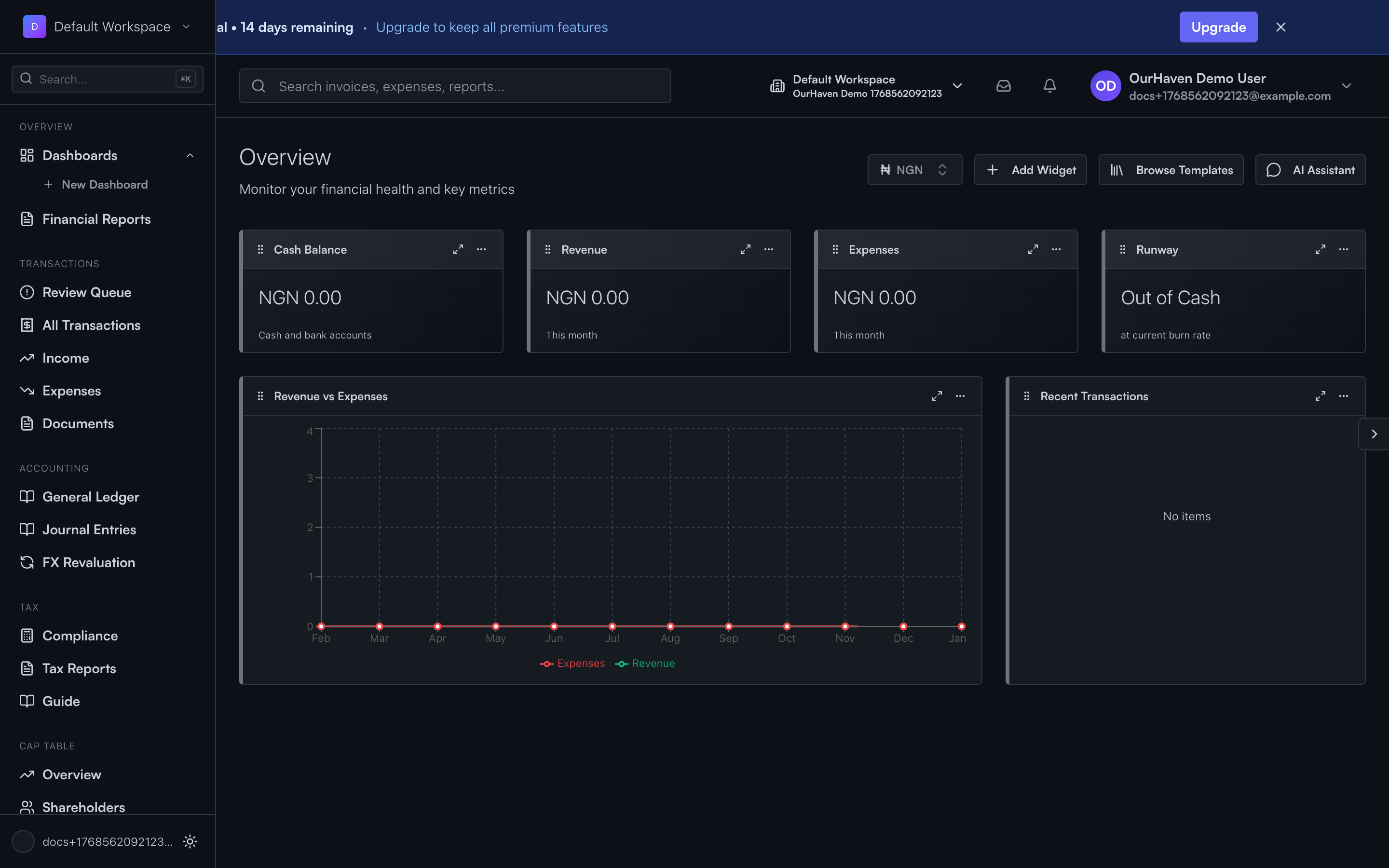
The next step is to add your money accounts (bank accounts, payment providers) and start recording transactions. See the service businesses guide for a complete walkthrough.
Creating additional workspaces
You might need multiple workspaces if you:
- Run multiple legal entities under one parent company
- Want to keep a side project separate from your main business
- Manage finances for different clients (if you're an accountant)
- Have different business units with separate P&L tracking
To create a new workspace:
- Click the workspace switcher in the sidebar (shows your current workspace name)
- Click "New workspace"
- Enter a name, select the jurisdiction, and choose a base currency
- Click Create
Each workspace starts fresh. No transactions, categories, or accounts are shared between workspaces. This keeps your books completely separate.
Creating additional organizations
Most users only need one organization. But you might want multiple if:
- You run completely unrelated businesses with different teams
- You want separate billing for different clients
- You're an accountant managing multiple client companies
To create a new organization:
- Click your organization name in the sidebar
- Click "Create organization"
- Enter the organization name and details
- A new workspace is automatically created in the new organization
Switching between workspaces
The workspace switcher is in the sidebar. Click it to see all workspaces you have access to, grouped by organization.
- Switch instantly without logging out
- The URL changes to reflect which workspace you're viewing
- Bookmarks and links go directly to the right workspace
Inviting team members
Team members are invited at the organization level. Once invited, you can control which workspaces they can access.
To invite someone:
- Go to Settings → Team
- Click "Invite member"
- Enter their email and select their role
- Choose which workspaces they can access
Roles: Admin can manage everything. Member can view and create transactions but cannot change settings. Viewer is read-only access for reports.
Common questions
Can I change my organization name later?
Yes. Go to Settings → Organization and update the name. This doesn't affect your data.
Can I move a workspace to a different organization?
Not directly. If you need to do this, contact support. We can help migrate the data.
Can I delete a workspace?
Yes, but it's permanent. All transactions, accounts, and reports in that workspace are deleted. You must have at least one workspace in each organization.
What happens to my data if I cancel?
You can export all your data at any time. If you cancel, your data is retained for 30 days, then permanently deleted.
Next steps
Now that your account is set up, you're ready to start using Acctally: